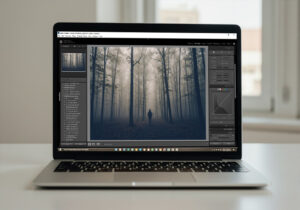
Lightroom Color Grading for Newbies Using Presets
Michael • September 24, 2025 • 4 min read


Michael • September 24, 2025 • 4 min read

If you’re new to photo editing, Lightroom color grading for newbies using presets can feel overwhelming. There are so many sliders, wheels, and panels that it’s easy to get lost. Luckily, presets simplify the process, giving you ready-made color adjustments that make your photos look professional almost instantly. With Color Grading Presets for Lightroom, you can pick a look, apply it, and spend more time shooting instead of fiddling endlessly with sliders.
Color grading isn’t just for professional photographers. It’s about setting the mood, balancing tones, and making your images pop. Even simple edits like adjusting shadows, highlights, and midtones can completely change how a photo feels. Presets take the guesswork out of this, especially for beginners.
Content
Starting with presets saves time and frustration. Instead of manually adjusting hue, saturation, and luminance, you can see instant results. According to a survey by Adobe, 65% of new photographers say they use presets to speed up editing (source). That means you’re in good company when you rely on presets as a starting point.

Even better, presets help you learn what each slider does. When you apply a preset, you can see how it changes exposure, color, and tone. Over time, this teaches you what adjustments make a photo feel cinematic, moody, or vibrant.
Using presets in Lightroom is simple, even if you’re just getting started. Follow these steps:
This workflow lets you get polished results quickly without feeling lost in technical details.

| Preset Name | Typical Use | Mood Created |
| Natural Tones | Weddings, Lifestyle | Soft, clean |
| Cinematic | Portraits, Street | Dramatic, polished |
| Moody Matte | Travel, Editorial | Muted, nostalgic |
| Vivid Pop | Cars, Landscapes | Bright, energetic |
Even beginners can achieve professional-looking results in minutes with this approach.

Pairing presets with cameras like the Canon EOS R6 or Sony A7 IV and lenses like the 24–70mm f/2.8 can make editing even smoother. Presets give your workflow a solid foundation, letting you focus on creativity instead of technical guessing.
As photographer Chase Jarvis said, “The best camera is the one that’s with you, but the best edits make your vision visible.” Presets bridge that gap, showing you what your photo could look like in seconds.
Lightroom color grading for newbies using presets is the easiest way to get professional results without frustration. Presets save time, guide your editing, and help you understand what makes a photo feel complete. Once you start using them, you’ll wonder how you ever edited without them.
Learn more about Presets and Lightroom:
Related Articles
Your thoughts and questions