



Add balanced Aqua and Orange tones without confusing slider.


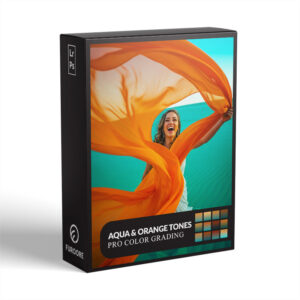

Aqua Orange Tone Presets
$29.90
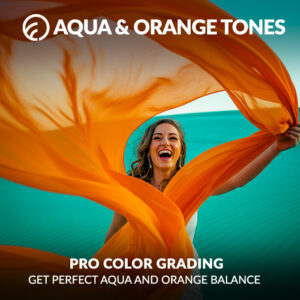
Bring cinematic aqua and orange tones to your photos. Perfect for travel, influencer, and cinematic styles, these presets add vibrant depth and balanced color to every shot. Whether you want bold or subtle looks, they’re designed for effortless, professional results.
Start transforming your images today—see the difference instantly!
✓ Aqua and Orange Tone Preset Collection
✓ Save Time and Energy
✓ Professional Look with One-Click
✓ Streamlined Editing Process
✓ Very easy to use
✓ Instant Digital Download
“These presets made my travel photos look cinematic in seconds. Easy and beautiful! – from Hannah T., Travel Blogger
Professional Aqua Orange Lightroom Presets
Your photos deserve to tell a story that captivates and inspires. These presets blend cool aqua and warm orange tones to create moods that evoke emotion and wanderlust. Whether you shoot landscapes or portraits, these presets add a rich cinematic feel that connects with your audience.
Give your photos the glow they’ve been missing and watch your creativity soar.
Why are these Pro Presets?
- Tuned for real lighting conditions.
- Designed with pro workflows in mind.
- They work seamlessly across camera models.
Get Pro Aqua and Orange Tone Presets:
Fresh, vibrant, and effortless color
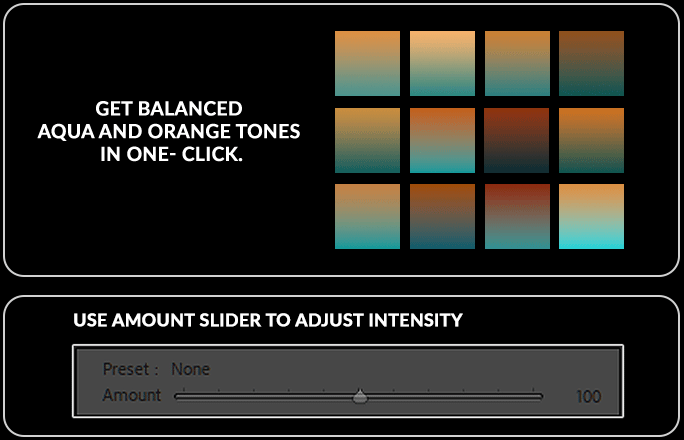
• Ocean Glow
• Tropical Drift
• Desert Mirage
• Lagoon Breeze
• Sunset Reef
• Crystal Cove
• Coral Wave
• Aqua Dream
• Mariner’s Flame
• Citrus Lagoon
• Amber Tides
• Seaside Ember
Whats Included
✓ 12 Aqua Orange Tone Presets
✓ 15 Clean Edit Presets
✓ File format: XMP, DNG
✓ Including 12 DNG files
✓ 1x Instruction Guide (PDF)
Compatible with:
» Adobe® Lightroom® 7.5 or later
» Adobe® Camera Raw 10.5 or later
» Adobe® Lightroom Mobile
» Android & iPhone
Clean Edit Presets
Clean Edit Presets help you build the perfect base for your photo by adjusting one setting at a time – like white balance, exposure, or tones. Each preset tweaks just one thing, so it won’t mess with any other edits you’ve already made.
Want your photos to feel professional?
Bring balanced, vibrant aqua and orange hues to your photos.
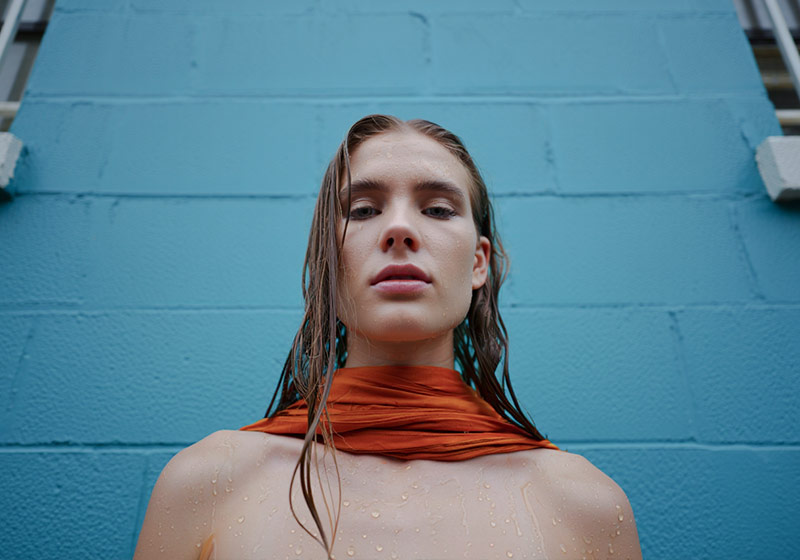
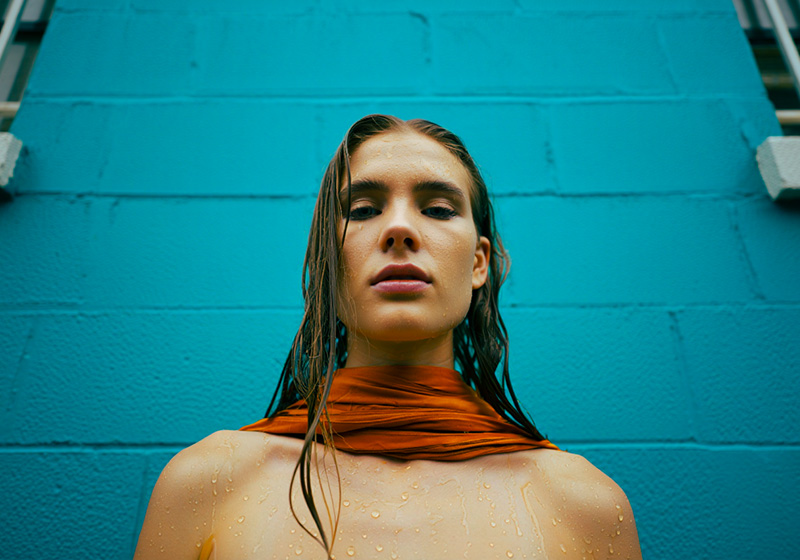
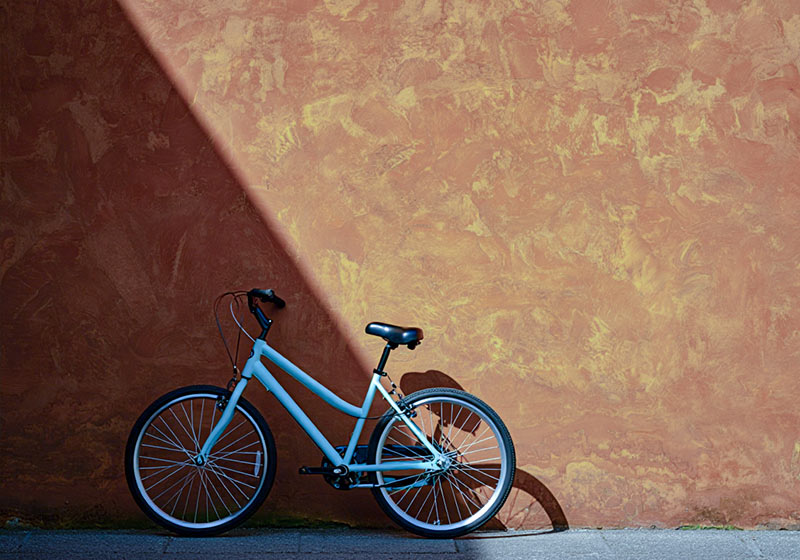
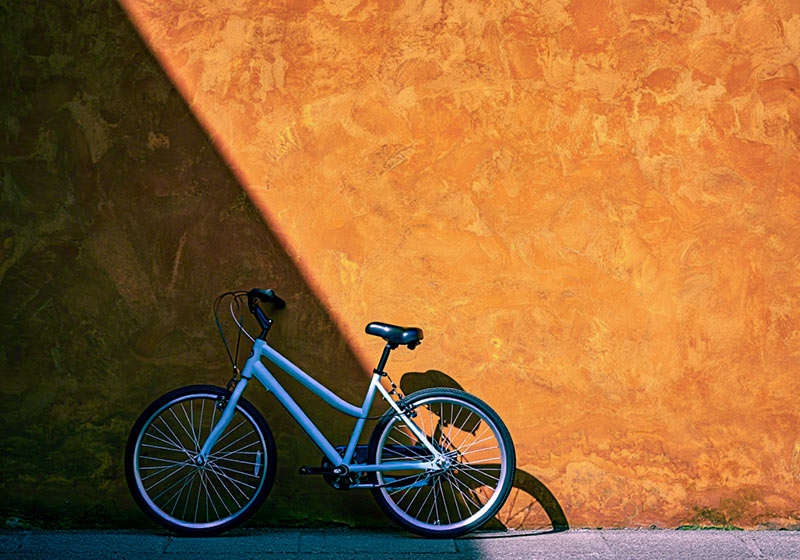
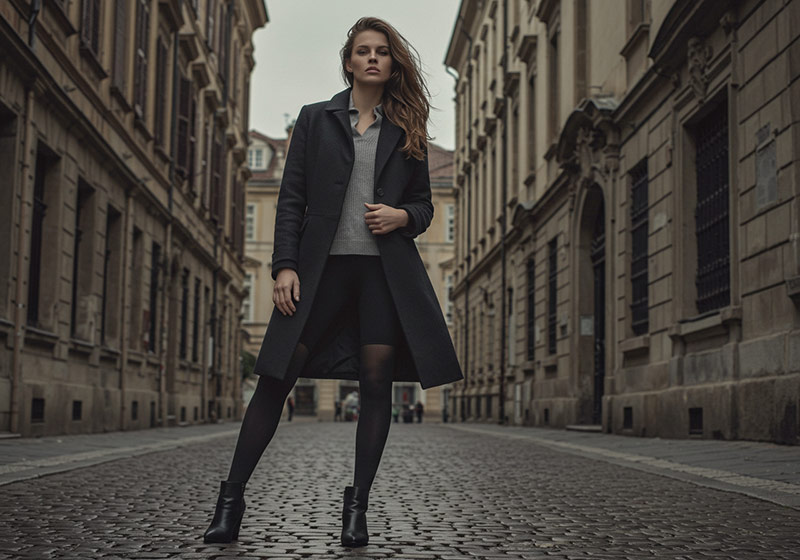
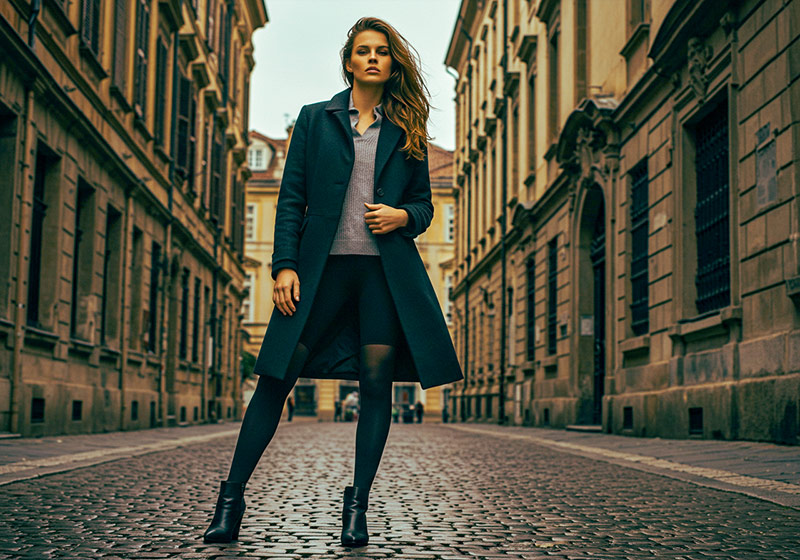

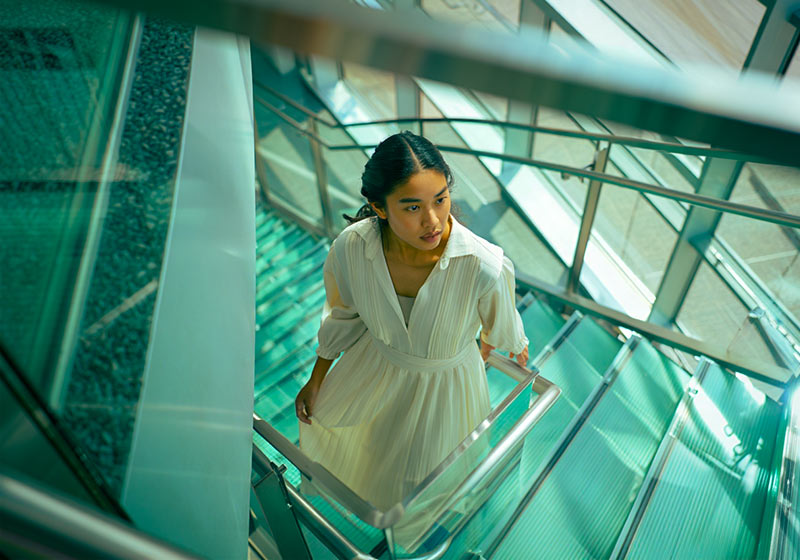
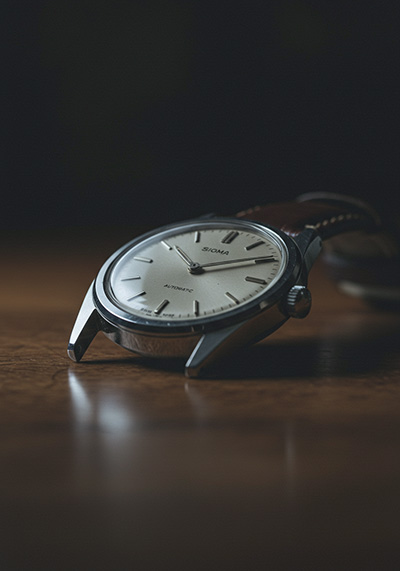
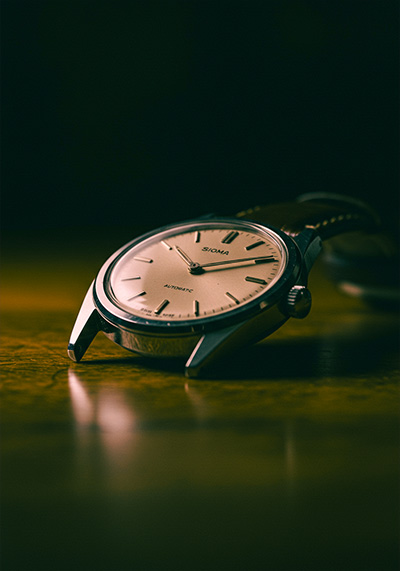
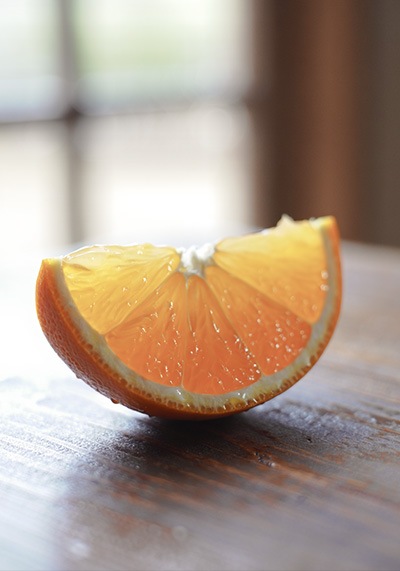
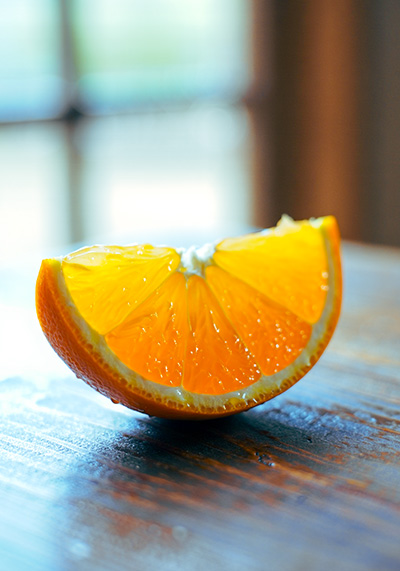


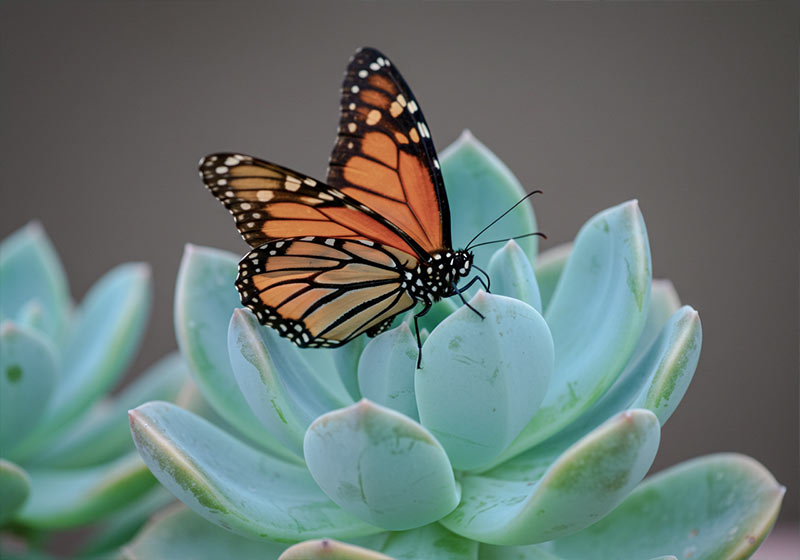
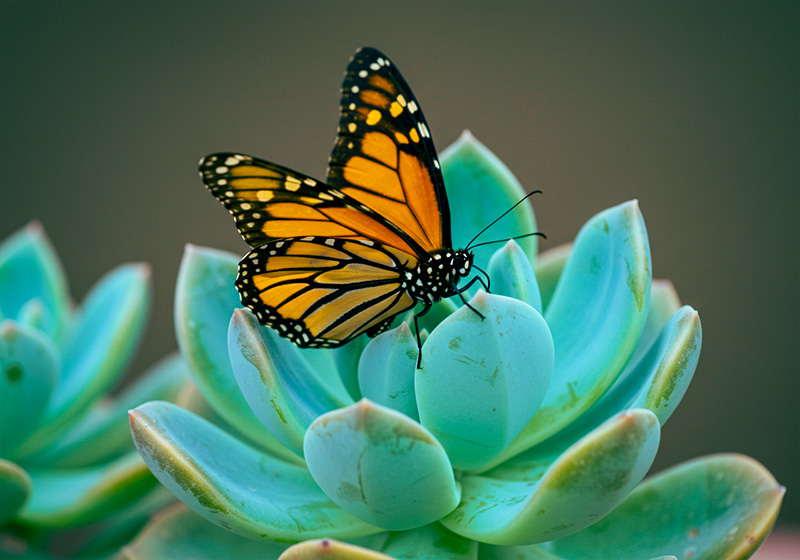
Love this aesthetic? Browse our complete Color Presets collection to find your perfect match. Make your photos look like movie stills with our cinematic Lightroom presets.
FAQ
Do you have Aqua Orange Tone Preset Tips?
-
Start with clean, well-exposed photos.
-
Apply the preset, then adjust exposure if needed.
-
Use the “Contrast” slider to add punch.
-
Fine-tune temperature for warmer or cooler feel.
-
Reduce saturation if colors feel too strong.
-
Try different presets for various moods.
-
Use presets on travel, portraits, or landscapes.
-
Save your favorite edits as custom presets for future use.
Can I adjust the presets after applying?
Absolutely! You can fine-tune exposure, contrast, and saturation easily.
Are these presets suitable for beginners?
Yes! They’re simple to apply and make your photos look professional instantly.
How to Download and Install the Presets
As soon as your payment is complete, you’ll get a download link sent straight to your email.
Just follow the easy steps in our How to Install Lightroom Presets guide, and you’ll be ready to start editing on your computer or phone in no time!
How to use Lightroom Presets?
Lightroom Presets with Easy Adjustment
These Aqua Orange Tone Lightroom Presets were created by a pro photographer, so you can trust they’re designed to make your photos look amazing, no matter if you’re using a fancy camera or just your phone.
Using them is super easy! Whether you’re editing on your computer or your phone, you can get great results in just a few steps.
Here’s how it works:
- First, take a photo with any camera – DSLR, mirrorless, point-and-shoot, or even your smartphone.
- Next, open that photo in Lightroom.
- Then, add one of the presets to your photo with a single click.
Just a heads-up: presets won’t always look exactly the same on every photo. Things like lighting, color, or how the photo was taken can make a difference. If the photo’s too dark, too bright, or low quality, the preset might not work as well.
After you apply a preset, you might want to tweak a few things to get the perfect look. That’s totally normal! Just play with the sliders in Lightroom until it looks right.
Also, if there are people in your photo, a preset might slightly change their skin tone. No worries, just adjust the colors a bit until it looks good to you.
Presets are here to help you start strong, but a little fine-tuning goes a long way. Have fun editing!
Can I use the Presets in Photoshop?
Yes, these presets also work in Photoshop!
You’ll need Adobe Camera Raw (ACR) version 10.3 or higher (for both Windows & Mac).
How to install:
- Open your photo in Photoshop.
- Go to the top menu > Filter > Camera Raw Filter.
- On the right, click the menu next to “Basic,” then choose Load Settings.
- Select the .xmp file from your unzipped download and click Load.
- Hit OK to apply the preset.
How to use the Clean Edit Presets?
Clean Edit Presets help you build the perfect base for your photo by adjusting one setting at a time – like white balance, exposure, or whites. Each preset tweaks just one thing, so it won’t mess with any other edits you’ve already made.
What are your Terms/License?
These presets are just for you! You’re welcome to use them for personal or commercial projects, but you can’t share, sell, or redistribute them to anyone else.
This license is for one individual only – it doesn’t cover companies or teams.
Please note:
Since these are digital downloads, all sales are final. That means no refunds, returns, or exchanges.
2 reviews for Aqua Orange Tone Presets
Add a review
You must be logged in to post a review.
• Start getting beautiful Photos in Minutes
Creating pretty photos and looking for the right tone effect can be very tough. For this reason, we at Furoore have spent countless hours for you creating Easy-edit workflow Lightroom presets.
• Quality above Quantity
We respect our customers and try our best to provide extra high-quality presets to simplify the editing. With our presets you achieve unique results in one click. You can easily adjust them to your own style or the look you are going for.
• One Time Lifetime Purchase
You only pay once to use your presets for your photos for as long as you want.
Related products
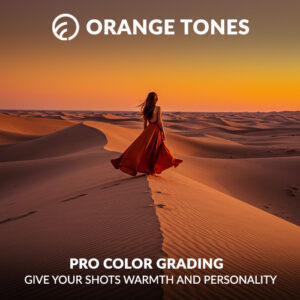
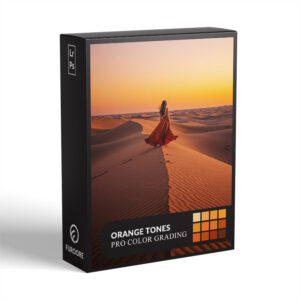
$29.90
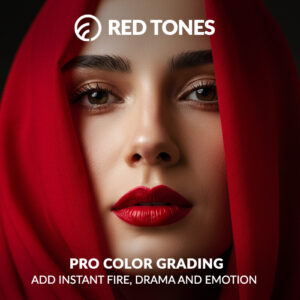
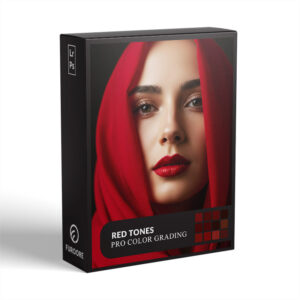
$29.90
-69%


Original price was: $319.10.$99.00Current price is: $99.00.
$29.90

Dimitri A. –
Colors are strong and good. Looks professional. Works well both on desktop Lightroom and mobile. A solid choice for visual consistency. Very happy.
Hannah T. –
These presets made my recent Bali trip photos look cinematic in seconds. Ocean Glow and Sunset Reef balanced aqua skies with golden skin tones perfectly. Thank you!